 AI-Z
AI-Z


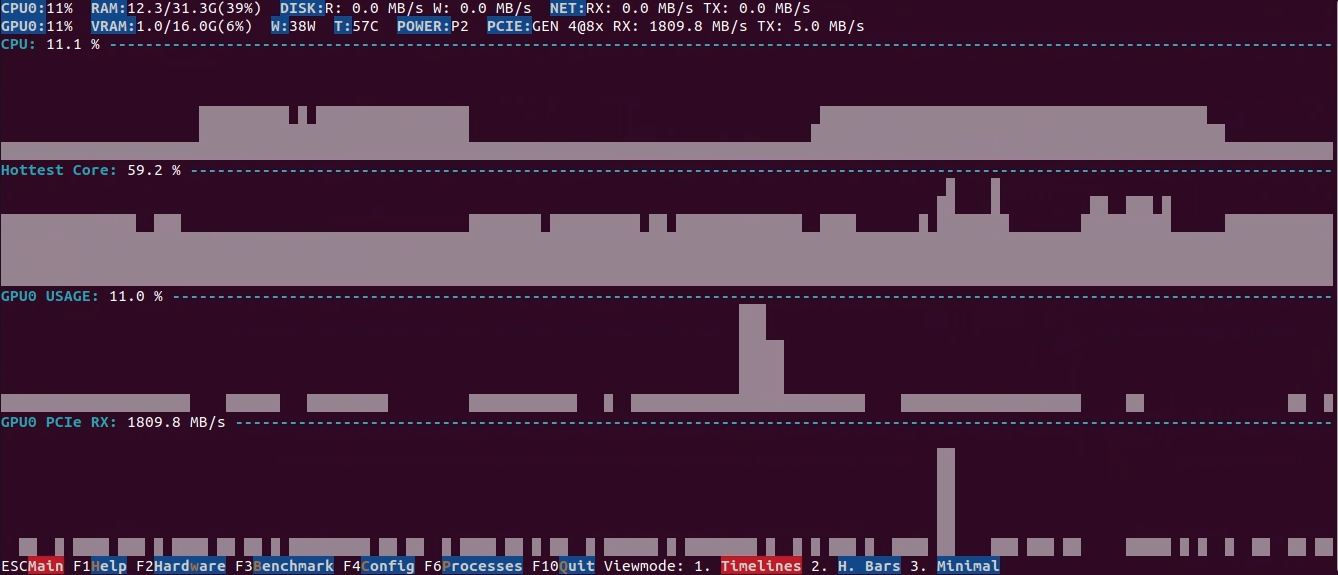
Terminal app for real-time monitoring of CPU/NPU/GPU performance timelines and AI related benchmarks. Supports AMD/Intel/NVIDIA. Provides many metrics all in one app to provide a holistic view including PCIE bandwidth, GPU Memory Controller usage, hottest core utilization, disk, network. Benchmarks CUDA, Vulkan, OpenCL and ONNX
| N/GPU | Linux | Windows |
|---|---|---|
| NVIDIA | ✓ | ✓ |
| AMD | ✓* | ✓* |
| Intel | ✓* | ✓* |
* some metrics are missing
Install
Ubuntu/Debian
echo "deb [trusted=yes] https://www.ai-z.org/ stable main" | sudo tee /etc/apt/sources.list.d/ai-z.list
sudo apt update
sudo apt install ai-z
Windows 10/11
Download either the portable ZIP or the installer from the latest GitHub Release:
Direct downloads (always point at the latest release):
- Portable ZIP (x64)
-
Portable: unzip and run
ai-z.exe - Installer: run
ai-z-windows-x64-setup.exe
Intel GPU metrics
On Intel Arc/Iris GPUs, metrics are queried via Intel Graphics Control Library (IGCL) and Windows D3DKMT API:
Supported metrics: - Temperature (°C) - Power draw (W) - via D3DKMT - GPU utilization (%) - GPU/Memory clock speed (MHz) - Fan speed (RPM) - VRAM temperature (°C) - Throttle state (power/thermal limiting)
Known limitations:
- PCIe link info: The IGCL ctlPciGetState() API may return error 0x40000019 on some systems. This is a known Intel issue. The app attempts to fall back to Windows SetupAPI, but some Intel drivers don't report accurate PCIe link speed/width.
- If you see PCIE:-- in the UI, this is expected on affected systems.
Troubleshooting:
1. Update to the latest Intel GPU driver.
2. Run ai-z.exe --diag-igcl-full to verify IGCL is working and see available metrics.
Build
Linux
sudo apt-get install -y build-essential cmake ninja-build pkg-config git
git clone https://github.com/microsoft/vcpkg.git
./vcpkg/bootstrap-vcpkg.sh
cmake -S . -B build -DCMAKE_TOOLCHAIN_FILE=./vcpkg/scripts/buildsystems/vcpkg.cmake
cmake --build build -j
./build/ai-z
Optional (developer): enable extra compiler warnings:
cmake -S . -B build -DAI_Z_ENABLE_WARNINGS=ON
cmake --build build -j
Build a .deb
Prereqs:
sudo apt-get install -y build-essential cmake dpkg-dev
Build + package:
cmake -S . -B build -DCMAKE_BUILD_TYPE=Release
cmake --build build -j
cpack --config build/CPackConfig.cmake -G DEB
Note: If you want the resulting .deb to install on Ubuntu 22.04, build the
package on Ubuntu 22.04 (or in a 22.04 container/chroot). Building on newer
distros (e.g. 24.04+) will produce a package that depends on newer libc6 and
libstdc++6 versions and will not be installable on 22.04.
This produces something like ai-z_0.1.0_amd64.deb in the build directory.
Install locally
For local installs (or downloading from a release page), users can install via apt:
sudo apt install ./ai-z_0.1.0_amd64.deb
Windows
Prerequisites: - Visual Studio 2022 with C++ development tools - CMake 3.16+ - Git
Build:
- Clone the vcpkg package manager and bootstrap it:
git clone https://github.com/microsoft/vcpkg.git
.\vcpkg\bootstrap-vcpkg.bat
- Configure and build ai-z with Visual Studio:
cmake -S . -B build -G "Visual Studio 17 2022" -A x64 `
  -DCMAKE_TOOLCHAIN_FILE=.\vcpkg\scripts\buildsystems\vcpkg.cmake
cmake --build build --config Release
Run:
.\build\Release\ai-z.exe
The TUI application will launch in your terminal. Use:
- Arrow keys or vim-style keys to navigate
- q or Ctrl+C to quit
- Check the UI for additional keyboard shortcuts